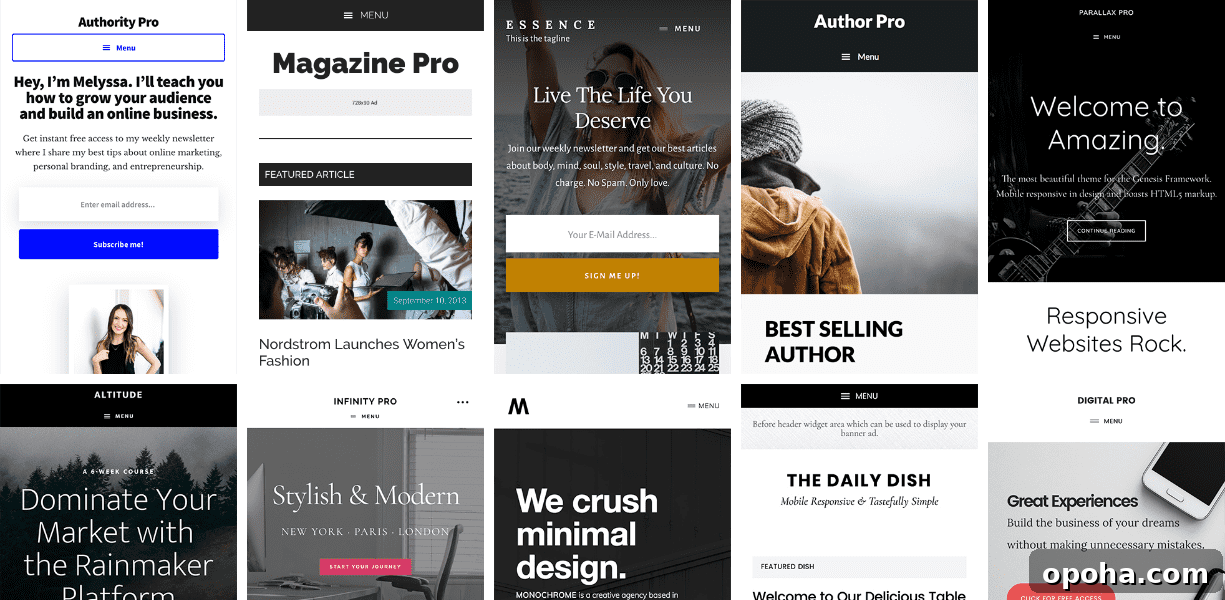
Genesis makes it simple for anyone to set up a WordPress website—no developer required.
I specialize in creating custom WordPress themes for businesses, but not everyone has the time or budget for a full design process. This guide will walk you through building a WordPress site on your own, with recommendations to help you achieve a fast, elegant, and SEO-friendly result.
Quick Links
- Domain and Hosting
- Pick a theme
- Install the theme
- One-click demo install
- WordPress training
- Recommended plugins
Need help?
I can introduce you to WordPress developers who can assist with setup and customization.
Contact Me
Why Genesis?
Many WordPress themes are overloaded with features you don’t need, which slows your site and complicates editing. Genesis is different: it focuses on speed and SEO, and many modern Genesis child themes include a one-click demo install that makes setup straightforward.
The Genesis system uses a parent framework that contains core functionality and child themes that provide design and layout variations. Choose a child theme that fits your content and style — there are many options available.
Where to find Genesis themes?
You can purchase the Genesis framework and child themes from StudioPress. If you host with WPEngine, many StudioPress themes are available through your account.
Below are step-by-step instructions to set up a WordPress website using a Genesis theme.
Step 1: Domain and Hosting
If you already have a site running, skip to the next step.
A domain is the web address people type to find your site. Domains typically cost around $10 per year. A web host is the server that stores your site. For WordPress sites I recommend a managed WordPress host—these providers specialize in performance, security, and WordPress-specific support.
After purchasing a domain and hosting, follow your host’s instructions to point the domain to the server. Once that’s complete, you should have a fresh WordPress installation ready to customize.
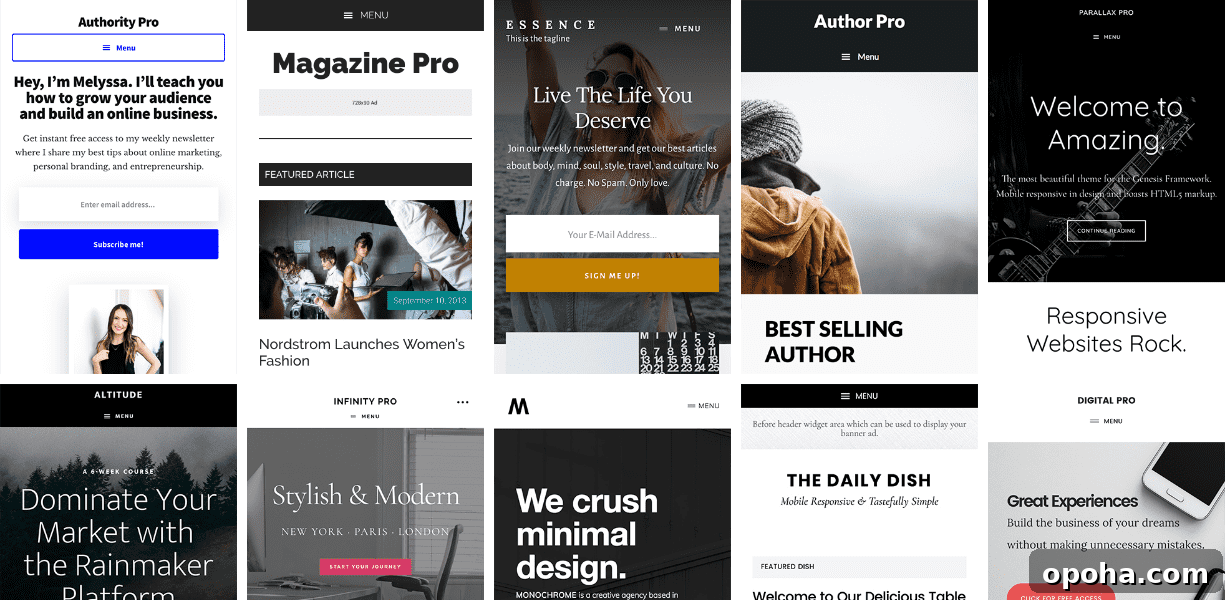
Step 2: Select a theme
Browse available Genesis child themes and select one that suits your type of site. I recommend choosing a recent theme so it uses the latest WordPress features and supports one-click demo import when available.
For this walkthrough I use the Revolution Pro child theme as an example, but the steps are the same for most Genesis child themes.
Step 3: Install your theme
After purchasing or downloading a Genesis child theme you’ll typically have two zip files: one for the Genesis framework (parent theme) and one for the child theme. Install both in WordPress.
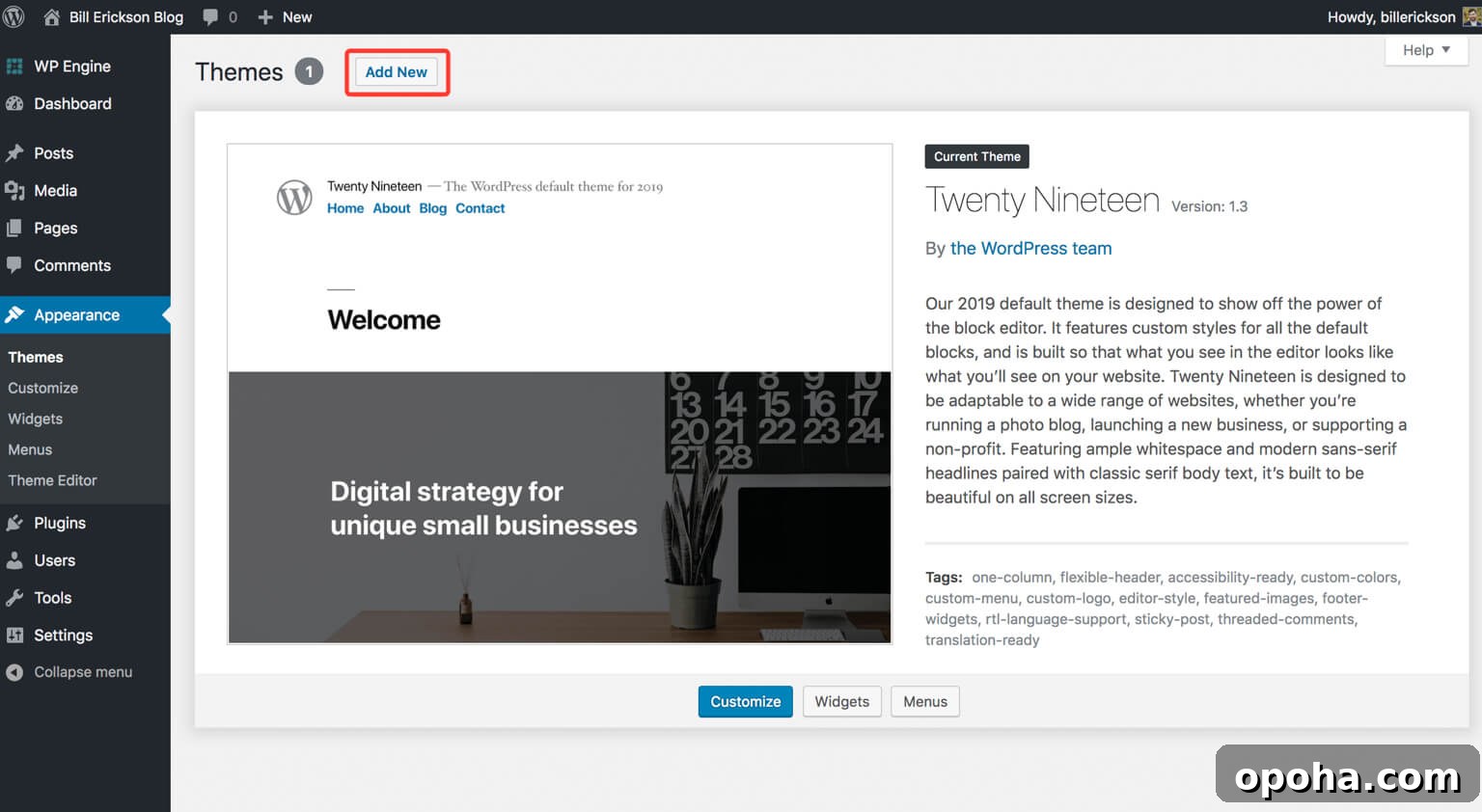
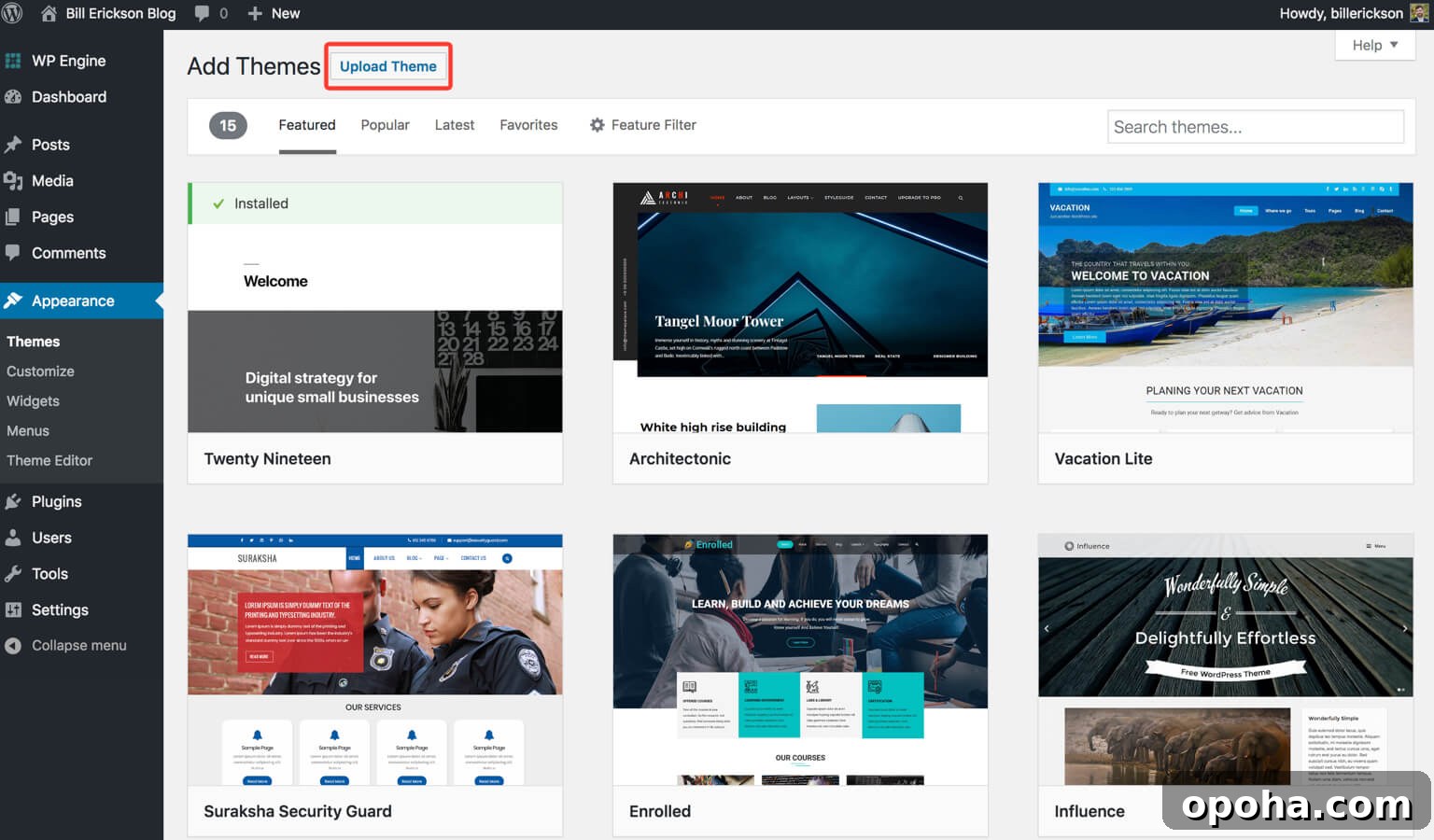
In your WordPress dashboard go to Appearance > Themes and click “Add New.” Then choose “Upload Theme” and upload the Genesis framework zip file first, followed by the child theme zip. After uploading the child theme, activate it.
Step 4: One-click demo install
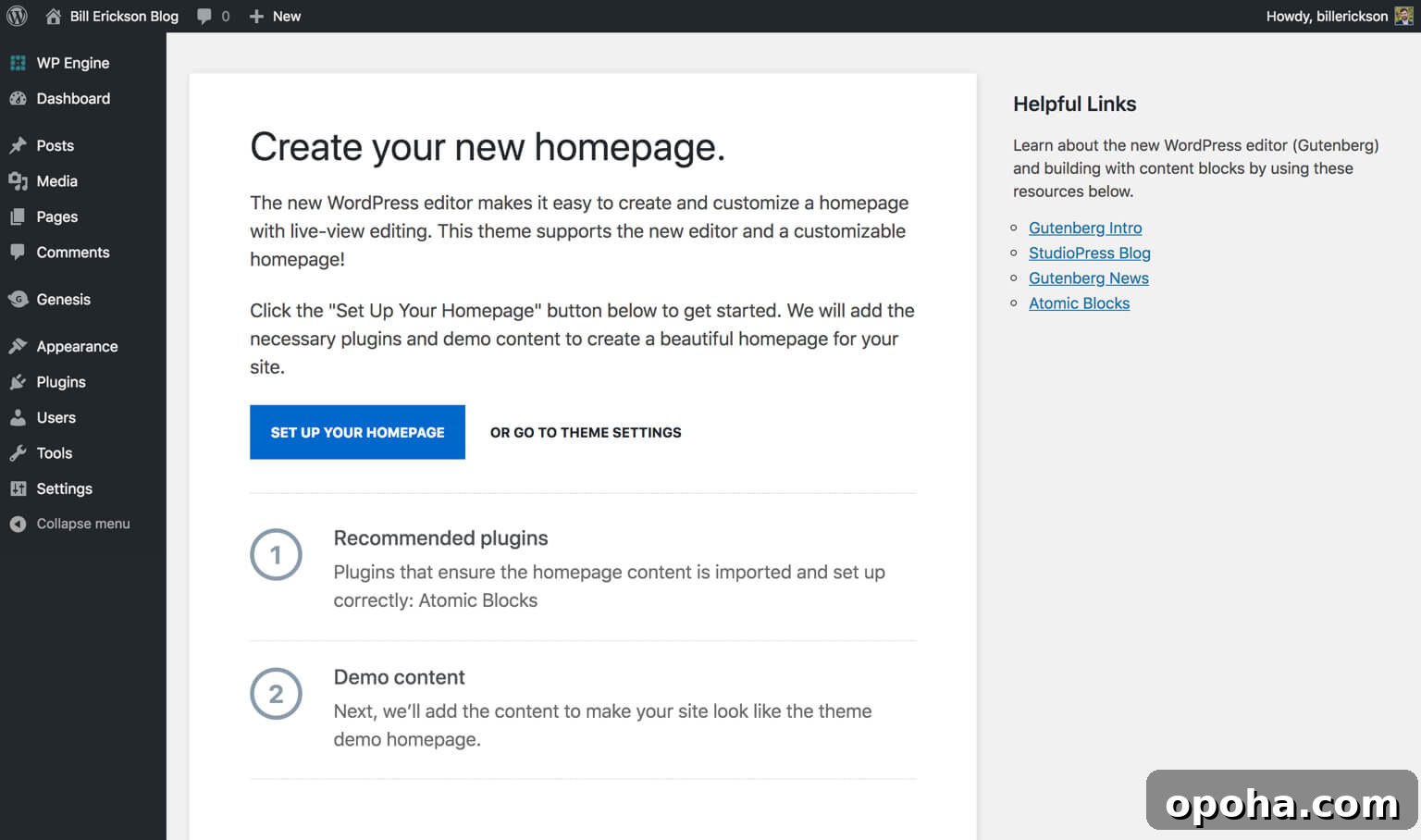
Many modern Genesis child themes offer a one-click demo import. This tool installs the demo content and recommended plugins, giving you a ready-made site layout to customize.
After running the demo import, visit your homepage, click “Edit Page” to open the block editor, and replace demo content with your own text and images.
WordPress Training
If you need help learning the WordPress editor or backend, consider a video training service that covers the Gutenberg editor and common plugins. Short tutorial videos can speed up the learning curve and make site maintenance easier.
Recommended Plugins
These plugins are useful on many sites and help with SEO, forms, analytics, and performance:
- Yoast SEO — helps optimize content for search engines.
- WPForms Lite — an easy contact form builder; premium versions add advanced fields and integrations.
- MonsterInsights — simplifies Google Analytics integration and reporting.
- WP Rocket — a caching and performance plugin that speeds up your site.
With your domain, hosting, a Genesis parent theme and a child theme installed, and demo content imported, you’ll have a professional-looking starting point. Replace the demo content with your own copy and images, configure essential plugins, and you’ll be ready to launch a fast, SEO-friendly WordPress website.